Track Analysis 2
This page is the evolution of Track Analysis.
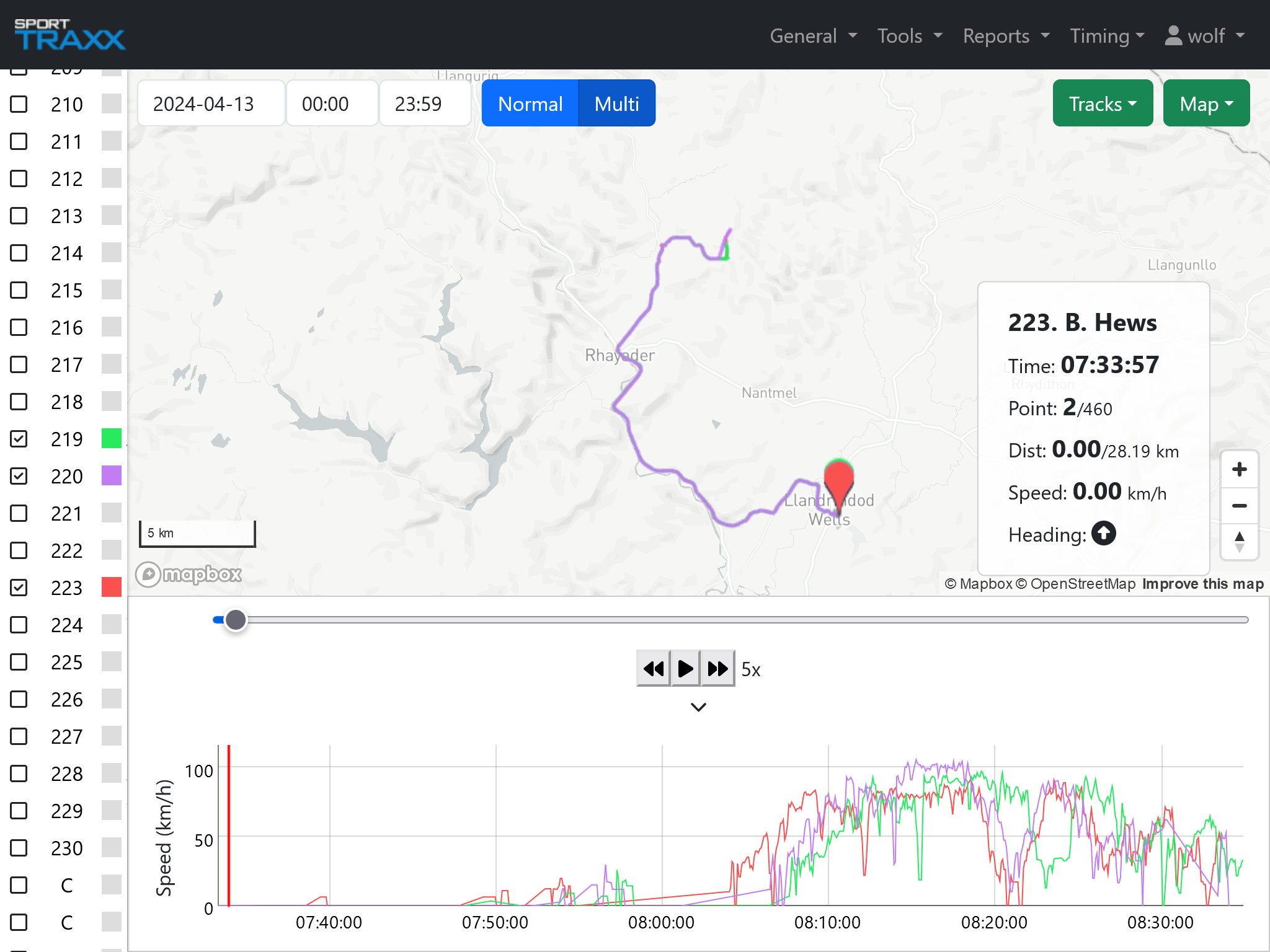
Differences from Track Analysis
- MapBox maps instead of Google Maps.
- Once the date/time window has been selected, all the competitors tracks are immediately available in the left column and they can be selected. You can change a competitor’s color by clicking on its colored square in the list.
- The Playback cursor can be moved manually or an automatic replay option can be started with speed up to 40x.
- Multi-Synchro Playback: in Multi mode, clicking on a SS Point just after the start, all selected competitors are virtually synchronized on that start and played back as if they would have started at the same time.
- Speed diagram can be displayed/hidden using the ^ button.
- Selecting/deselecting one or more competitor(s) from the left column, their tracks are immediately displayed/hidden on the map.
- If a vehicle has an alias, a small box will let you show the track of each or both devices.
- If an event has already been filed, a drop down menu will show the available dates and will retrive the database from the archive
Special functions
Using the hidden command hh, the control menu appears in the upper left corner. Type h to hide again.
Controls:
- Display tracks: shows lines between transmitted points
- Display points: shows the transmitted points
- Display alarms: shows positions of alarms
- Trackcolor: changes the track color according to track, age, speed or device
- Pointscolor changes the color points according to track, age, speed, device, nmc or cid
- Filterbytime restricts the time window to the filtered values
Color gradiants and graphic options of points, age and speed can be customized in the following fields. Additional special functions, as geofence areas setup, are available in the extra menu
Special import option
You can anytime overlay a KML file into the Track Analysis 2 by dragging it on the map (it will be shown as a layer).
You can anytime import a NMEA file into the Track Analysis 2 by dragging it on the map (it will be available in the competitor's list).