TP
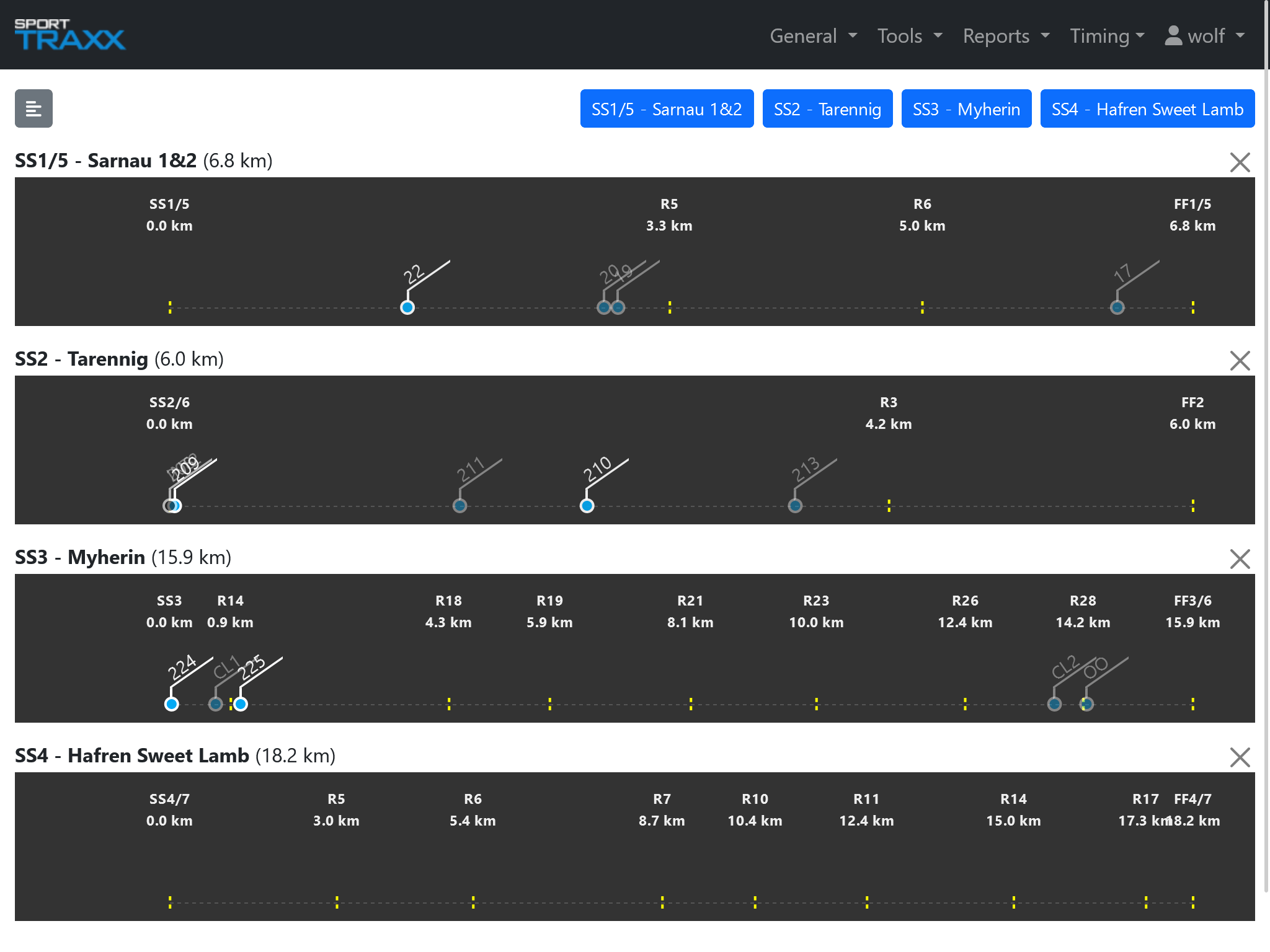
As an alternative tool to the Map2D, where vehicles are running along twisty tracks on a map, this page shows the advancing of all competitors, according to their starting order, on horizontal bars. The vertical lines show selected passage waypoints of the imported KML file.
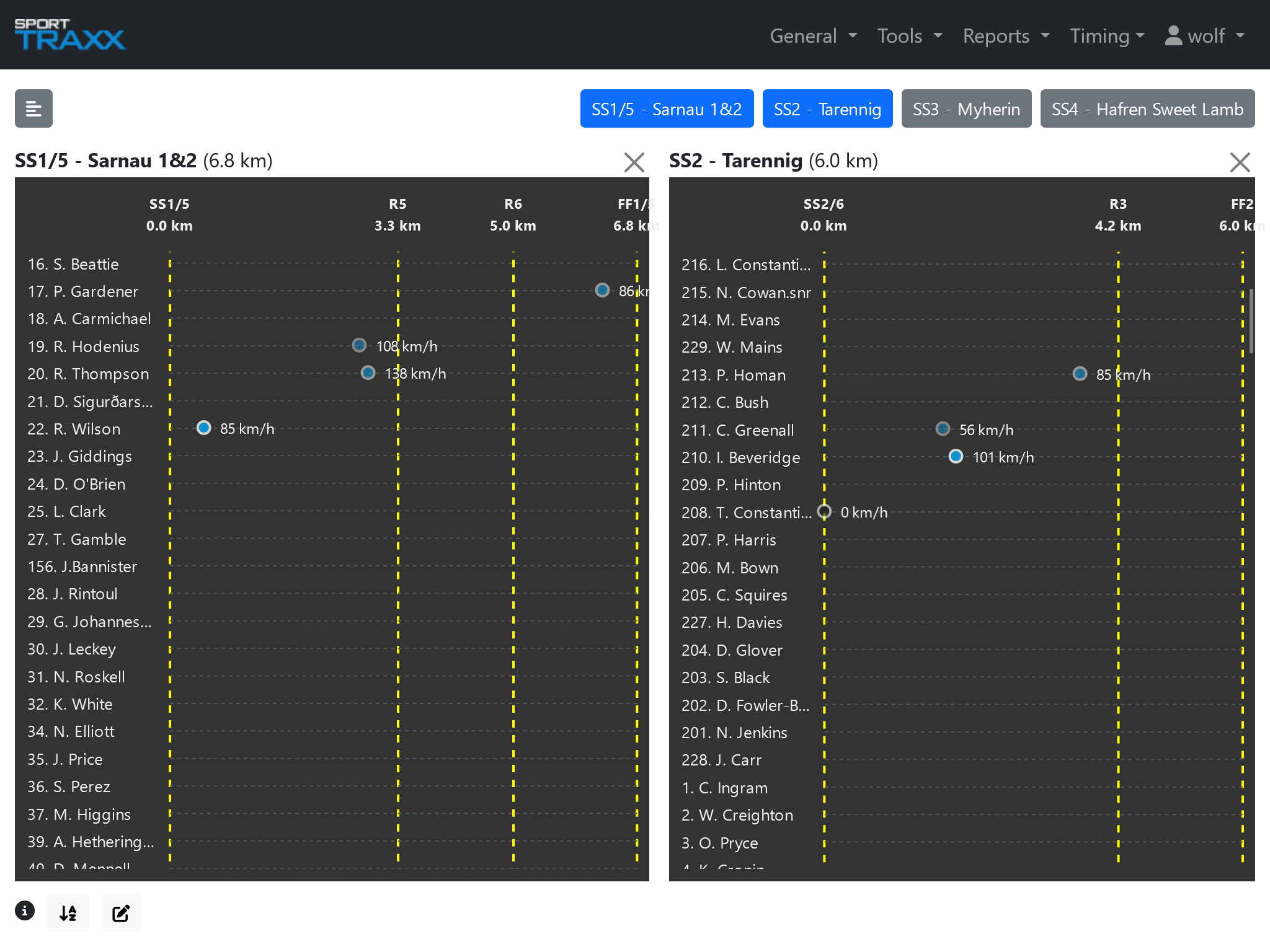
Competitor's icons run from left to right, each on his own line, showing their actual speed and their status with the same colors as in the Map2D. Up to all the stages and the road sections can be switched on or off on one screen, and the competitor's lists in the different stages can be aligned by scrolling up and down.
Functions
Stages buttons
Click to show/hide a stage. In the upper right corner. The order you click determines the sequence of the stages on the screen
Info button
A colors legenda is available in the lower left corner under the info icon and matches with the colors of Map2D.
Starting order button
Links to the Order page. Here the listing order can be changed.
Edit
Opens an editor where stages, road sections and waypoints can be enabled/disabled/shown/hidden/removed.
Menu functions
Single line view
Switch the view to a different one, where the competitors are all shown moving along a single line
Speed
Show/hide the speed of each competitor (available only in multi line mode)
Show competitors
Show/hide the competitors
Show service vehicles
Show/hide the service vehicles
Editable
Switch on and off to be able to move manually (drag and drop) an icon along its line, in case of missing automatic update of position. Note: do NEVER push manually an icon along its line, if you are not 100% sure about its exact location (this function is available only in multi line mode)
Setup
- Press the edit button to import the KML file, which was prepared with the proper order of stages, points, roadsections.
- Enable or disable the tracks or points you want to see in the TP page. Points are the vertical lines. Then come back to TP.
- Press the starting order button. You will be linked to Order page. Drag and drop the vehicles in their correct starting order.
- Confirm with the save button on the bottom of the vehicle list. Alternatively you can use the comma separated start order button and edit the list manually.
- Go back to TP link
- Switch on or off the stages you want from the list in the upper right corner, in the order you like.