Overview2
This page is divided in three subpages: Vehicles, Vehicles overview and Devices.
Vehicles
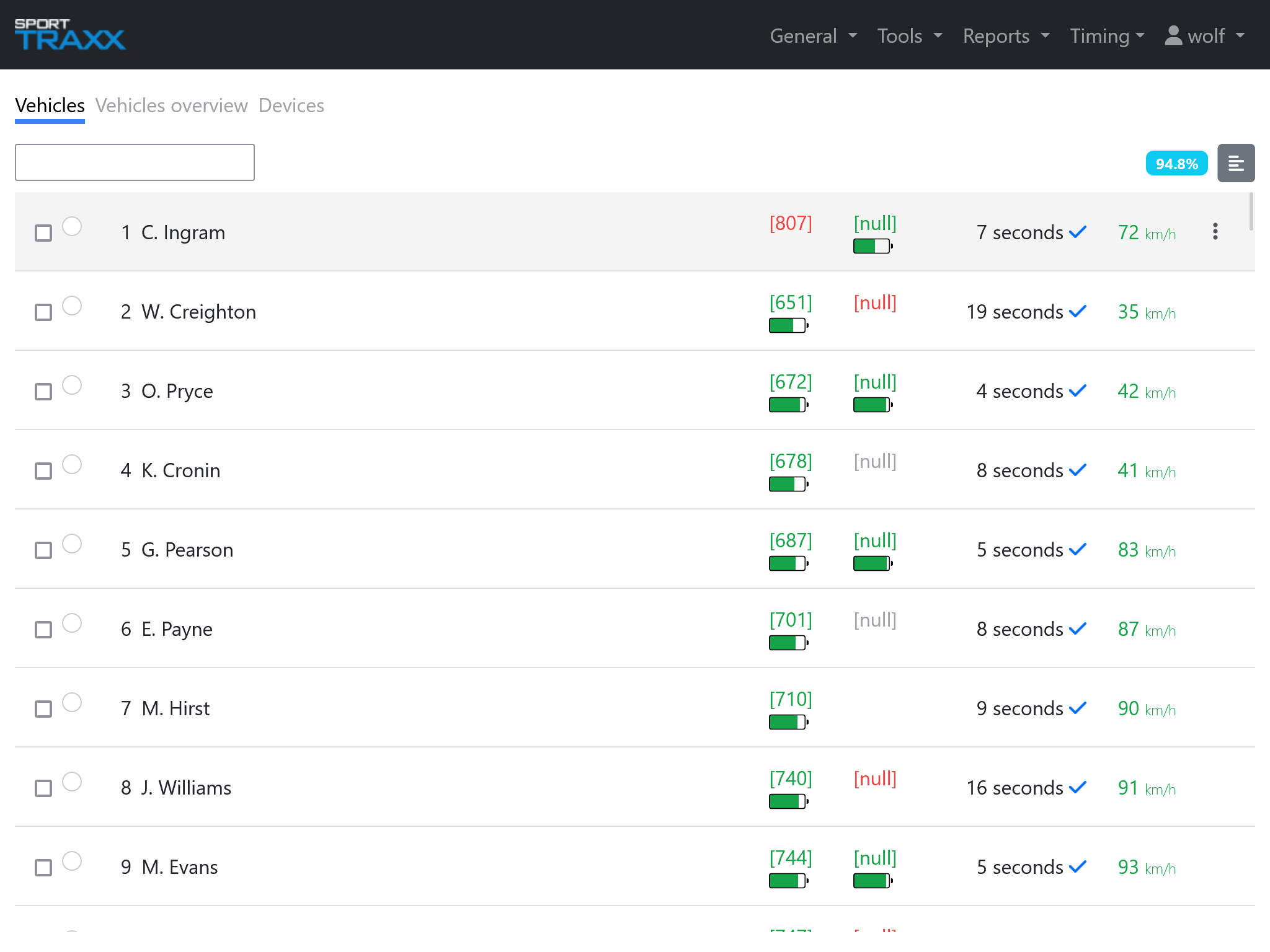
Similar to the Overview page, all the vehicles are listed in sortable orders. This type of view is more suitable for small displays. In the upper right corner the SPI (Sporttraxx Performance Indicator) and a filter tool The command list is available for each line on the very right side. When one or more vehicles are checked, the standard commands line is opened at the bottom. By clicking on the device ID (green if connected, red if disconnected) in the device column, you are linked to that device's info. In it, a useful diagram, with time filters, shows the behaviour of the battery. On the very bottom, special notes can be added and assigned to that device, keeping a record of its performances/problems.
Vehicles overview
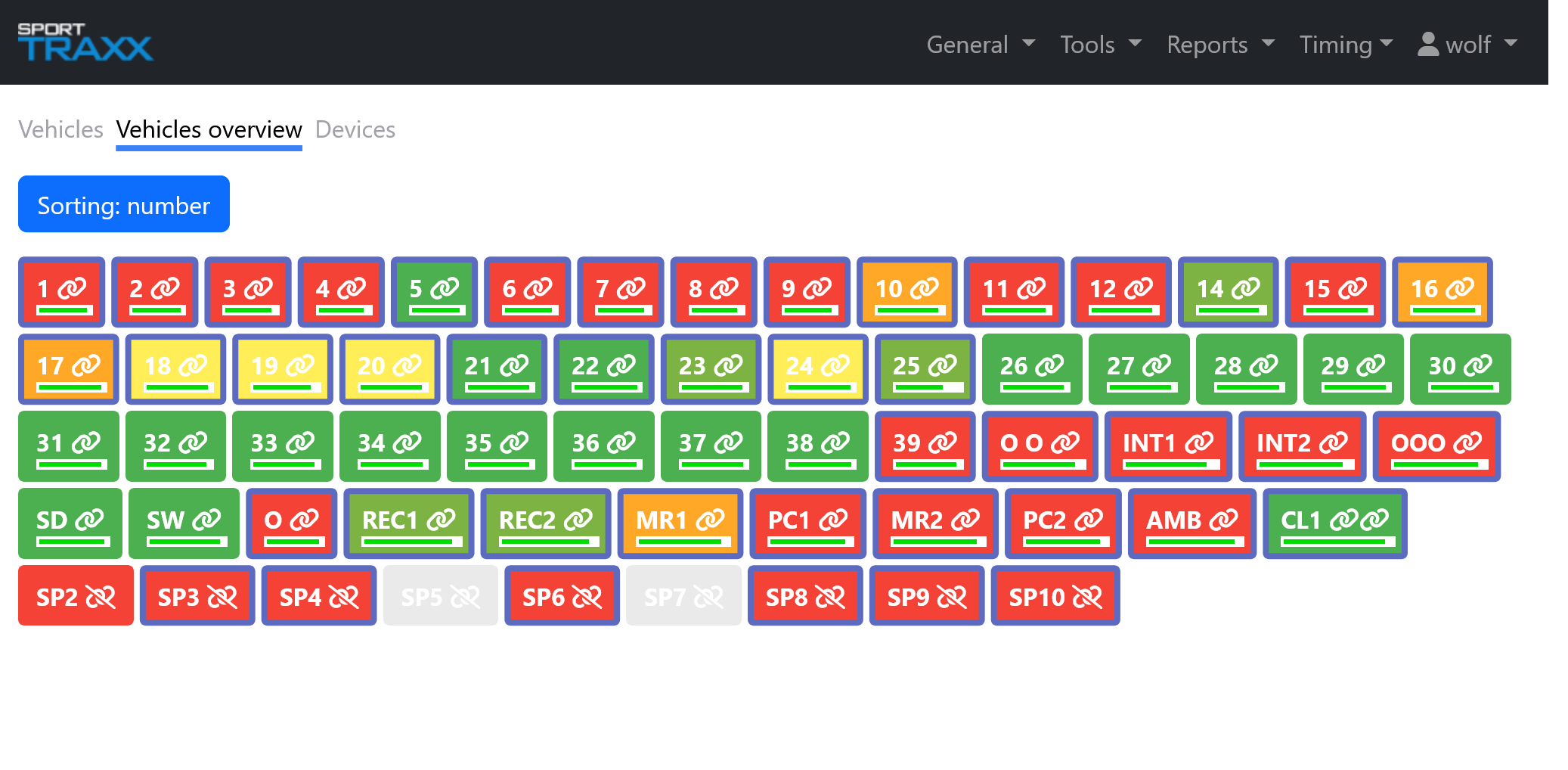
This page shows the relevant information about the trackers and their connection status. Its graphic structure is more suitable for events with many competitors, than the classic Overview page. It avoids the continuous scrolling up and down along a vertical list.
Buttons
The Sorting button can order the list of devices by::
- Competitor's number
- Starting order
- Position age
Colors meaning
Each time the page refreshes (automatically), the competitor's box will be:
- Green if position age is <30sec.
- Light green if 30 to 75 sec.
- Yellow if 75 to 150 sec.
- Orange if 150 to 300 sec.
- Red if >5 min.
The outer border is blue if speed = 0 Km/h = not moving A chain icon shows the connected/disconnected status and a bar shows the battery level Moving the cursor on an icon shows its name
Competitor's info
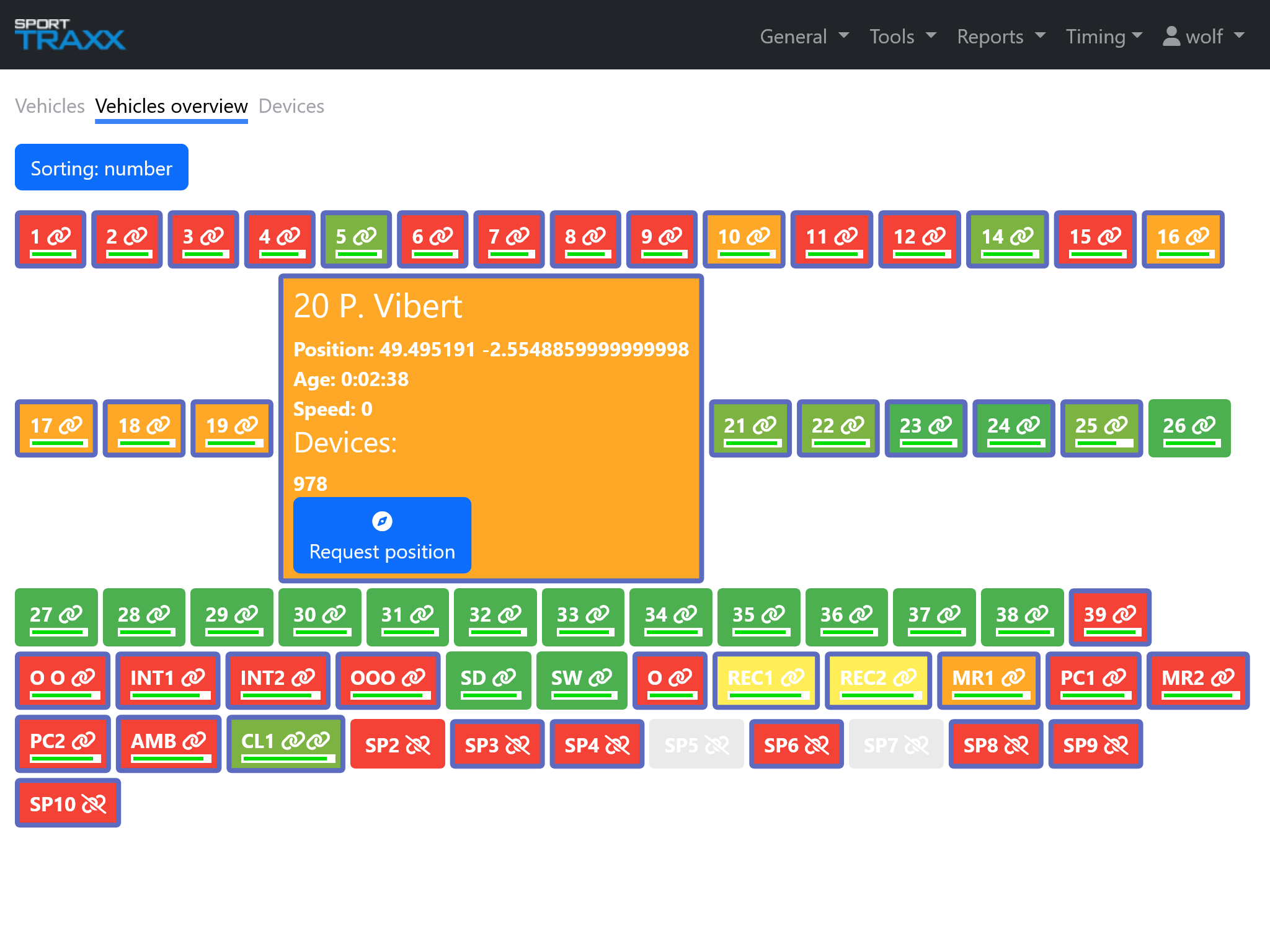
Clicking on the competitor's box opens a detail box with info such as race number, competitor's name, coordinates, time since last transmission, current speed and associated device(s) if any.
The Request position button sends an update request to that tracker.
Devices
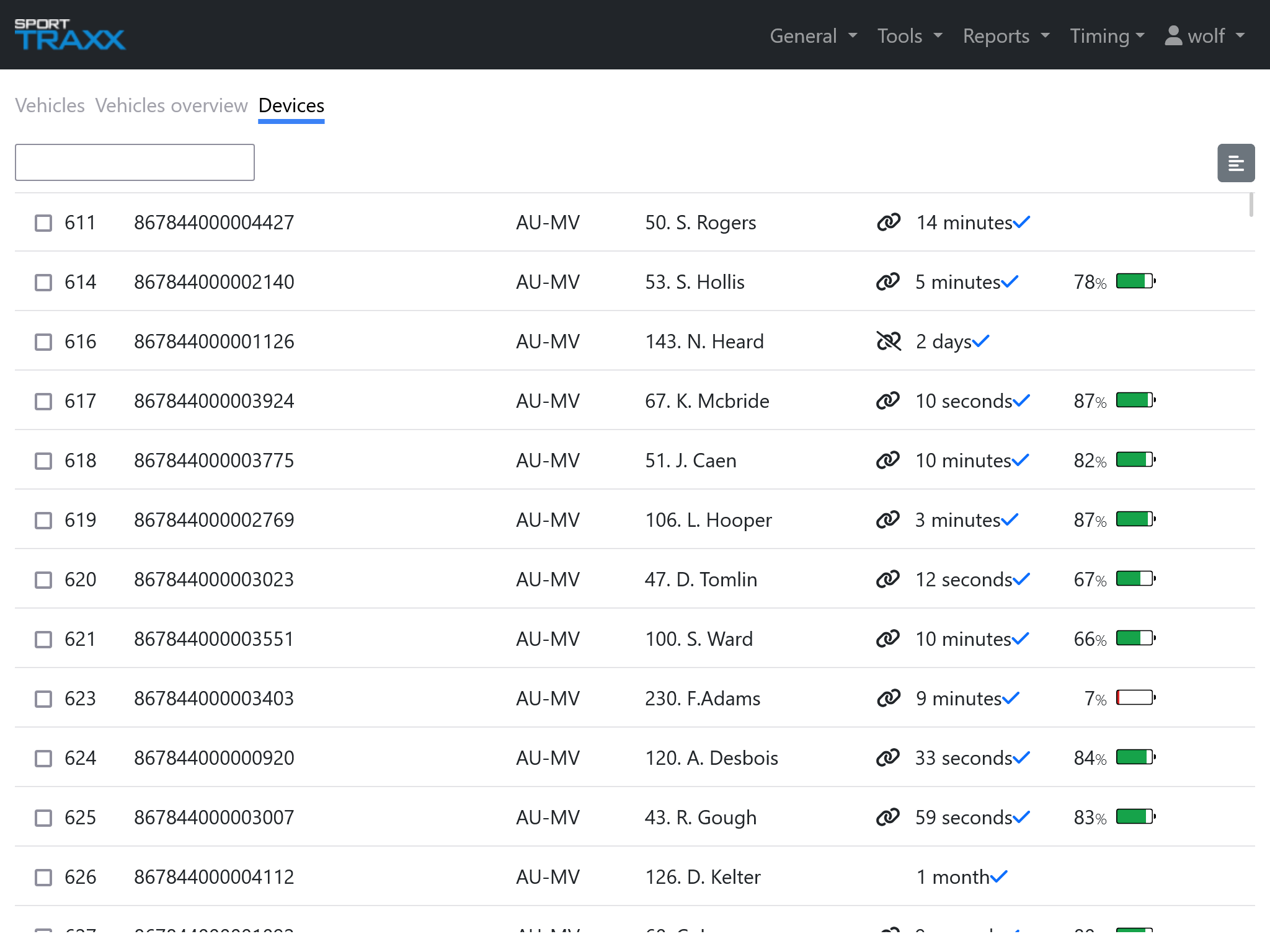
In this subpage the devices are listed showing their settings profile (if any) and their connection status. Clicking on a device line, you access the details of that device, as described before. Beside the general information, a battery level diagram is displayed at the bottom. A time range (last 6h up to last 7 days) can be selected. On the very bottom a notes section allows the recording of information related to that specific device. These info will remain associated to the device for future use. Checking one or more devices, will open a commands line on the bottom. Beside a few standard options there is also a special send a command buton which sends special instructions or settings to the selected tracker(s)