Manage
This page allows an easy and fast management of the trackers associated with vehicles.
Functions
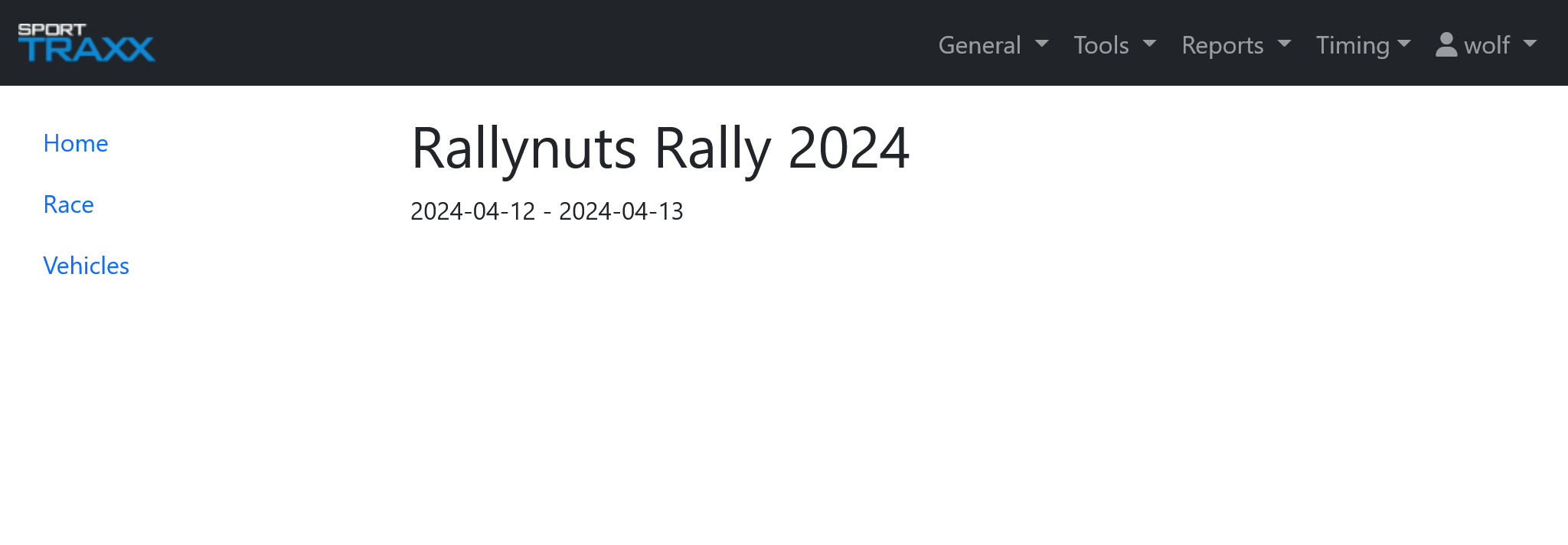
Home
Loopback link to this page.
Race
Links directly to the race management page in the administration. Access to this page depends on your authorization level. The use of this setup page is explained in a separate document.
Vehicles
This page manages the assignment of tracking devices to competitors.
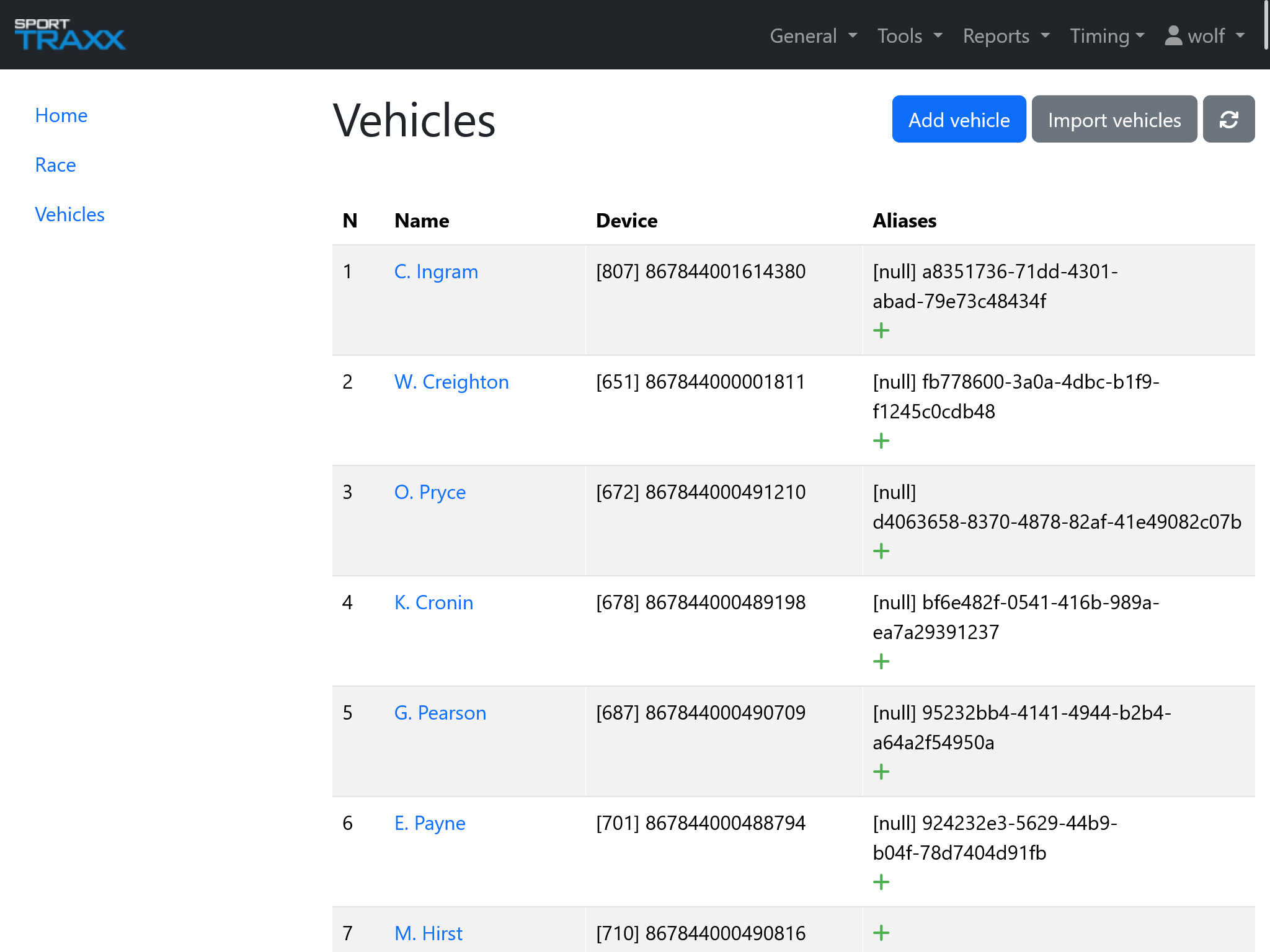
In the top right corner of this page, three buttons are available:
- Add vehicle: link to administration page, where a vehicle can be added to the system. Access to this page depends on your authorization level
- Import vehicles: link to administration page, where a file containing multiple vehicles can be imported. Access to this page depends on your authorization level
- Refresh: Refresh vehicles list
Clicking on the vehicle’s name you are forwarded to the vehicle's page in the main event’s administration. Here you can edit the name and assign a new tracker to the competitor. Access to this page depends on your authorization level.
Clicking on a + button in the Device column, it opens a box where you can assign a device. You might be warned that that device is already assigned.
Clicking on a device number in the Device column allows you to change the assigned device with a new one. You might be asked if to swap or take over a tracker if it was already assigned to another vehicle.
Aliases
You can assign up to 10 trackers to one vehicle, all working together. Only the last incoming position will be shown on the map. Typical combinations are GSM+GSM or GSM+SAT or GSM+APP. To add an alias, click on the + button in the Aliases column and type the device number of the added tracker. You might be asked if to swap or take over a tracker if already assigned to another vehicle.
Using the Sporttraxx Tracky App, the UUID ID will be shown as alias.