Map
This page allows manual intervention on the icons shown on the Map2D page.
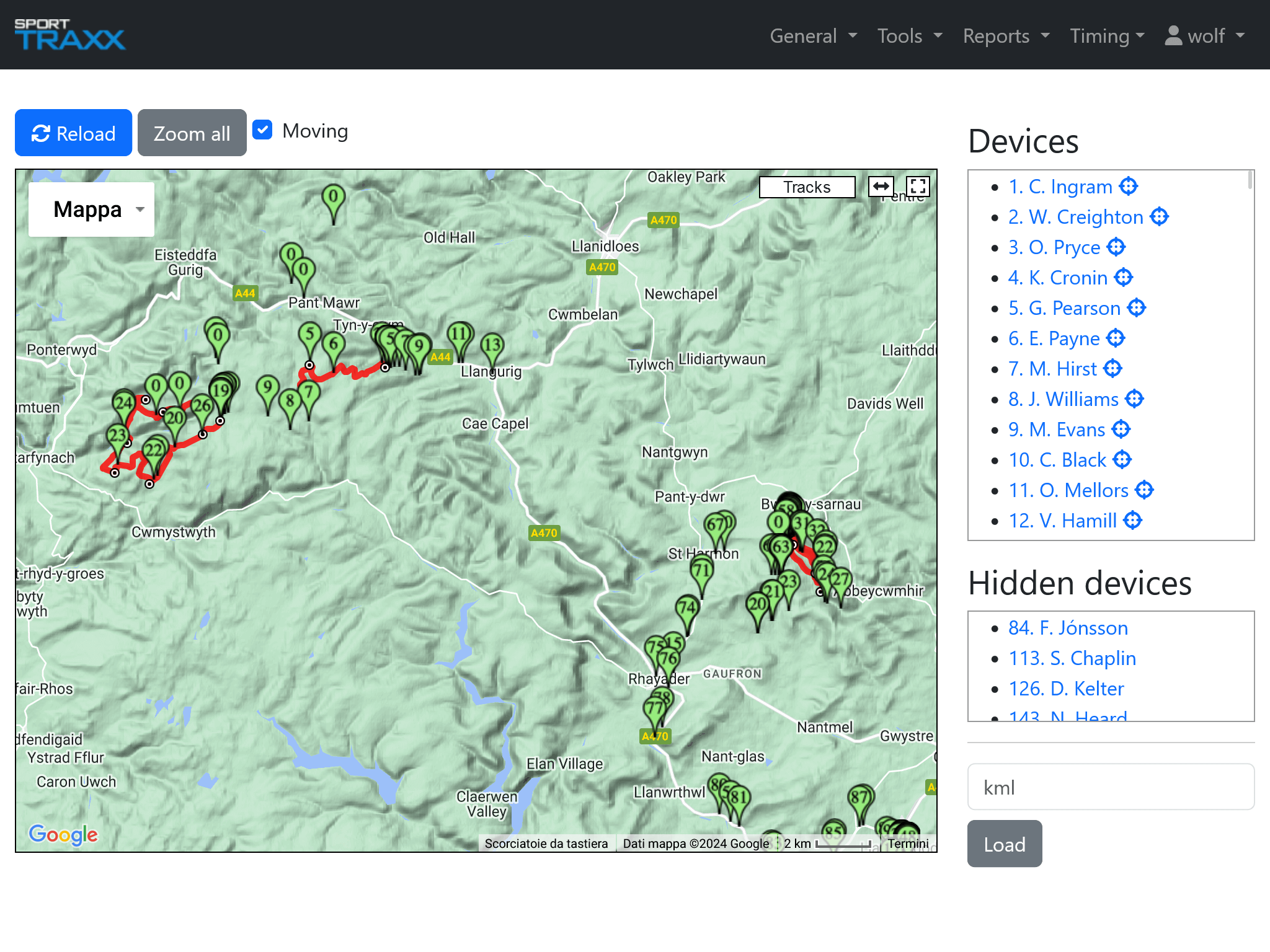
Competitors' icons may be dragged manually to a new location, with the option of showing them blue if moving (with a random speed value of 60/70 km/h) or black if stopped.
Functions
Reload
Updates all actual positions. Note: this page DOES NOT refresh automatically. So each time you use it, first update the positions.
Zoom all
Concentrate all vehicles in that map window.
Use
Move a vehicle
- The Moving checkbox on the top decides if the new manually assigned position will be shown as moving or static;
- Find the vehicle in the Devices box on the right and select it;
- Zoom in, drag that vehicle to its new position and release it;
The vehicle will now have jumped to its new manually assigned position in the Map2D page.
A manually relocated position is not shown in the Track Analysis history.
Vehicles without a valid GPS position are shown at 0,0 coordinates in front of the Gulf of Guinea.
Make a hidden vehicle reappear
To make a vehicle appear again in the Map page, after it was hidden in the Overview and was not transmitting again:
- Center the map on the position you want the vehicle to appear again;
- Find the hidden vehicle in the Hidden devices box and select it.
The vehicle will appear in the center of the map. Eventually relocate it manually to its new final position.
Note: the icons cannot show more than 2 digits. In case of doubts click on the icon and check the number in the vehicle's box.
Important note: manual interventions on non-transmitting vehicle is allowed ONLY if its position is known through a reliable source. Do never relocate a vehicle to an unconfirmed position.