Track Analysis
This powerful tool allows several types of investigations during and/or after the race, processing the data saved during the race.
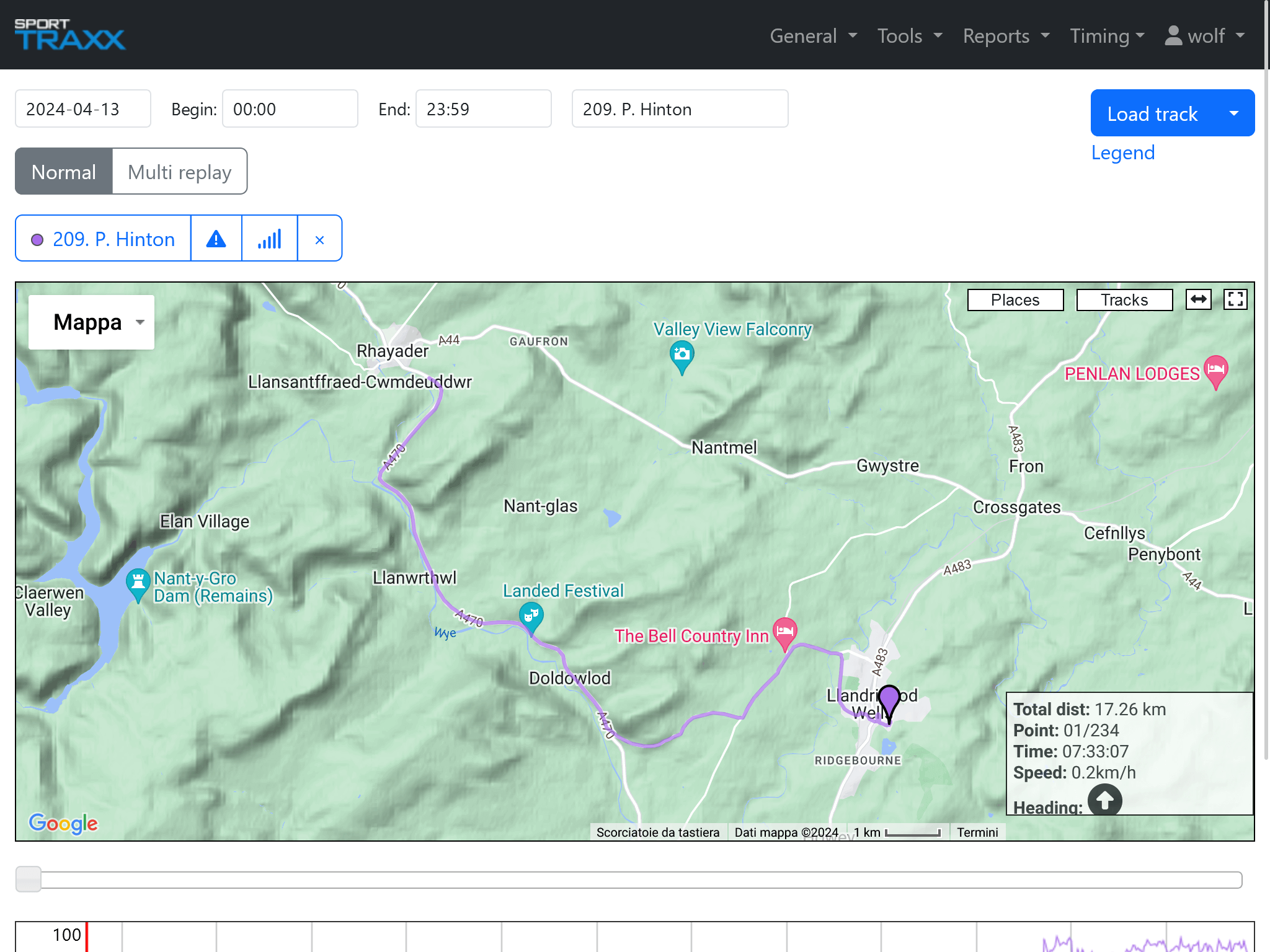
Use
- Select the date/time window of the investigation.
- Select a competitor from the scroll- down list.
- Using the Load Track button choose:
- Download track for one or more selected trackers only
- Load all to download the tracks for all trackers. That might take some time and challenge the computer’s performance. You better use the track_analysis2 for that.
- One or more trackers will have been downloaded and listed on top of the map.
- Using the Normal/Multi Replay button choose a single playback of a selected tracker’s history or a multi replay of all downloaded trackers.
In the map, the track line(s) is shown, with its speed diagram on the bottom.
Scrolling the cursor below the map, from left to right, you play back the run of that tracker. Leaving the cursor on the slider you can advance and return second by second by using the 🠘 e 🠚 keys. Leaving the cursor in any point of the map you can advance and return position by position using the Page🠙 and Page🠛 keys.
Selecting an area in the speed diagram, you can enlarge it, up to several times. Return to the full day diagram with double click on it.
If more trackers have been downloaded, you can select one by clicking on its name. If you want to play back all of them, then select the Multi Replay option.
You can randomly change color by clicking on its name.
The Alarms button shows where SOS/OK/ADA/GMW buttons have been pressed, along the track.
The Chart button allows the use of speed diagrams and shows track point details in the box in the map.
The x button removes that tracker from the page.
Inside the map window following buttons are available:
- Map: to switch between maps and satellite maps
- Places: to show timing points on the map. Their positions can be adjusted by dragging them
- Tracks: to show the KML tracks on the map, eg. the stages
- Ruler: to measure distances on the map
- Enlarge: to bring map to full screen size
The Info box show values such as total distance, number of track points, time, speed and heading