Map2D
This page shows the live-tracking on different maps and allows some basic interactions with the tracking devices.
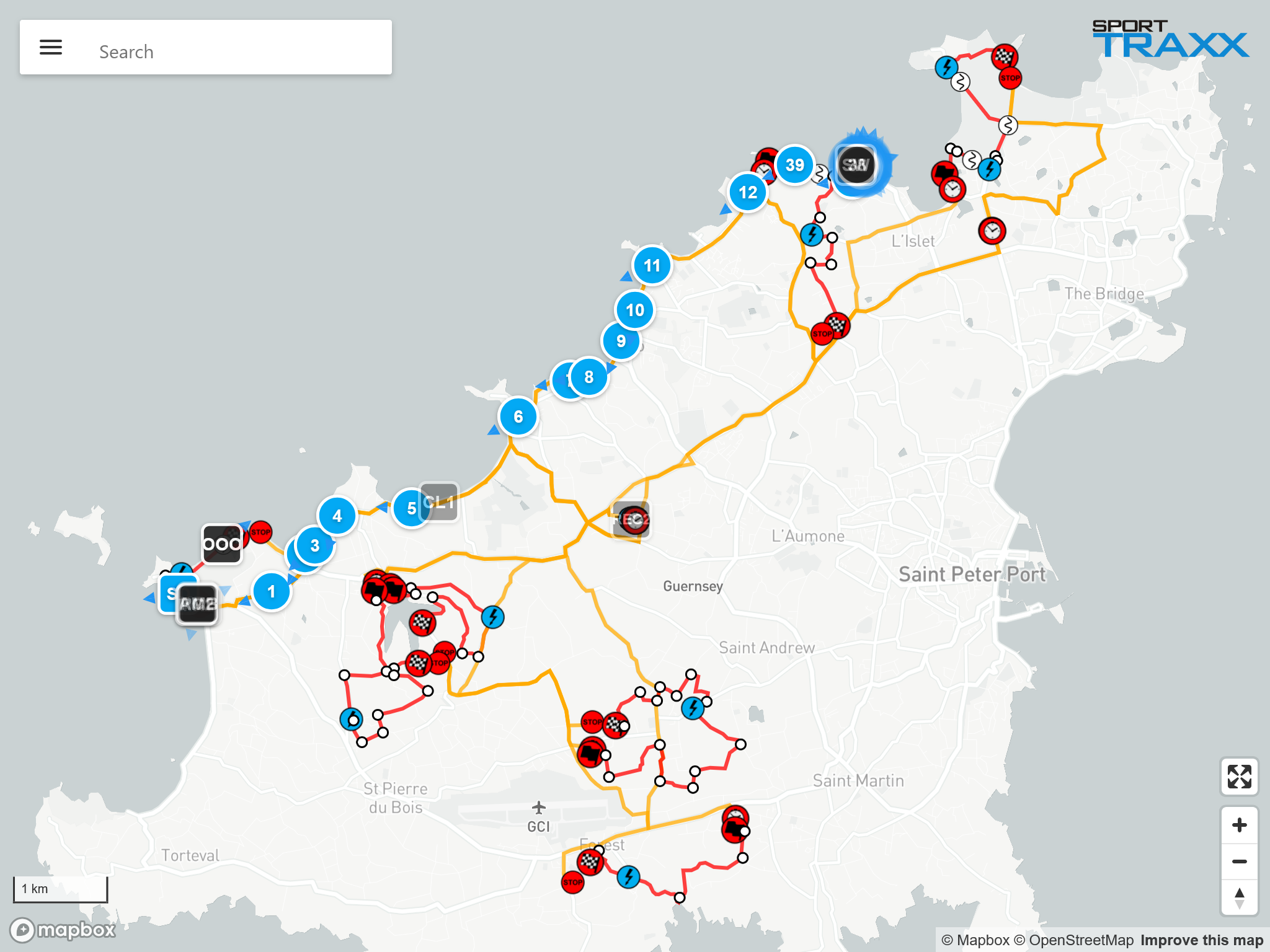
Search bar
Menu
Clicking on the menu icon in the search box opens a side menu with these options:
- Map Type: Allows the selection of different cartographic and satellite maps. It includes an empty map to print or send screenshots of reports with reduced file size
- Other settings:
- Toggle places shows on the map the actual locations of Sporttraxx clocks highlighting their “should be” position. That helps detecting wrong placements of timing equipment on the field.
- Toggle ruler opens a ruler tool that allows measurements between points and heading indication (CAP), for quick helicopter interventions.
- Toggle connection info switches the color of the icons from movement to connection status (green = connected, red = disconnected).
- Toggle speed color switches the color of the icons to speed related. The threshold is set after selecting this option.
- Toggle all tracks shows/removes a tail for all competitors from that moment onwards
- Hide competitors hides all competitors from the map
- Hide service vehicles hides all service vehicles from the map
- Show hidden vehicles allows to see on that PC only, icons with a NON_PUBLIC status
- Links:
- Overview Links back to the Overview page.
- Login/Logout
Search field
To target a competitor and center it the map, type its number or name in the search field. A competitor's box will be opened on the bottom of the map. Same can be accomplished by clicking on the competitor's icon in the map.
Only vehicles shown on the map can be found with the search bar. If they are in NON PUBLIC, COLLECTED and HIDDEN status, they are not suggested in the search field, and not shown on the map.
Icons
Icons can have two different shapes:
- 101 Round shaped for competitors with racing number
- 101 Square shaped for vehicles with no racing number. Service vehicles are not visible to users who are not logged in with a password.
Vehicles set as NON PUBLIC, COLLECTED and HIDDEN are not shown on the map
A competitor's icon is essential in understanding its current state:
- 101 Moving (speed > 7 km/h)
- 101 Stopped (blue ripple animation)
- 101 OK button was pressed
- 101 SOS button was pressed (jumping animation)
- 🔥101 Fire SOS button was pressed (jumping animation)
- 101 Road blocked/Hazard button was pressed
- 101 A crash has been detected
- R101 Retired
 101 Redflag sent to the device
 101 Redflag received by the device
 101 Redflag acknowledged by the crew
Icon’s transparency may be:
- 101 Bright color as long as the position is updated (not older than 20 seconds)
- 101 Gradually fading when position is becoming old (older than 20 seconds)
Note: make sure the time of your PC is synchronized with the GPS/internet time as the level of fading can be affected by a wrong synchronization.
Depending on specific settings of the trackers, if not moving and therefore not transmitting, the transparency level might stay faded till a manual request position command.
If the Auto. rec. pos. option has been selected in the Overview page, then all devices will be polled once every four minutes. That keeps the level of transparency below certain values.
Note: too many forced transmissions (request position commands sent) might affect the battery duration of the devices.
Competitor's box
 Displayed information are:
- Custom color The color assigned to the circle around the icon. Can be changed from here by clicking on it
- Number and name of competitor/service vehicle
- Actual speed
- GPS validity Moving the pointer on it will show actual coordinates that can be copied in the clipboard
- Age of last transmitted position
- _NMV flag A purple box shows a totally not-moving tracker. (movement sensor).
Command buttons
- Toggle track: show/remove a tail with the last 300 transmitted positions
- Request position: request an update of the position. As a consequence of a NMV flag, requesting a position is forcing the tracker to confirm again its NMV status.
- Req. Call/ACK: a callback request or an acknowledgment to an SOS message can be sent. On GL300/310/320 only, also a vibration is triggered. On FIA and UK trackers it triggers the green LED.
- Stop time: show the time a vehicle stopped in its current location and for how long
Checkboxes
- SOS: shows a received SOS request. Can be reset by clicking on it
- OK: shows a received OK info. Can be reset by clicking on it
- NEW_ALARM: disables the animation of a new alarm
- OUT: activates the OUT status, By checking it, the icon will be marked with an "R" and racing number is barred = out of race
- NON_PUBLIC: by checking it, that icon will not be visible on the map anymore. It can be seen again on a pc with activated Show hidden vehicles option.
Clicking on a different icon will replace the previous competitor's box. The "X" will close the box.
Hidden functions (key combinations)
- Switch between Google Maps and MapBox : By typing Shift + s m the screen will switch to a different version of the Map2D page with different 3D map options
- Show GPRS connections: By typing s c the color of the icons will change to Green = connected or Red = disconnected
- Open Ruler: By typing r a ruler will be opened or closed on the map
- Open Menu: By typing m or . the special settings menu will be opened or closed on the map
- Toggle Track All: By typing t t a all the icons will leave a colored tail on the map, from that moment onwards
- Show IMEI: By typing s i all the icons will show the IMEI that last transmitted that position. Useful when using alias trackers which are transmitting in parallel mode
Special import option
You can anytime temporarily overlay NMEA or KML files into the map2d link by dragging them on the map in that pc only.