Timing
This page allows the management of the timing places and the Sporttraxx clocks, monitoring their connection state, battery levels and correct positioning on the field.
Table
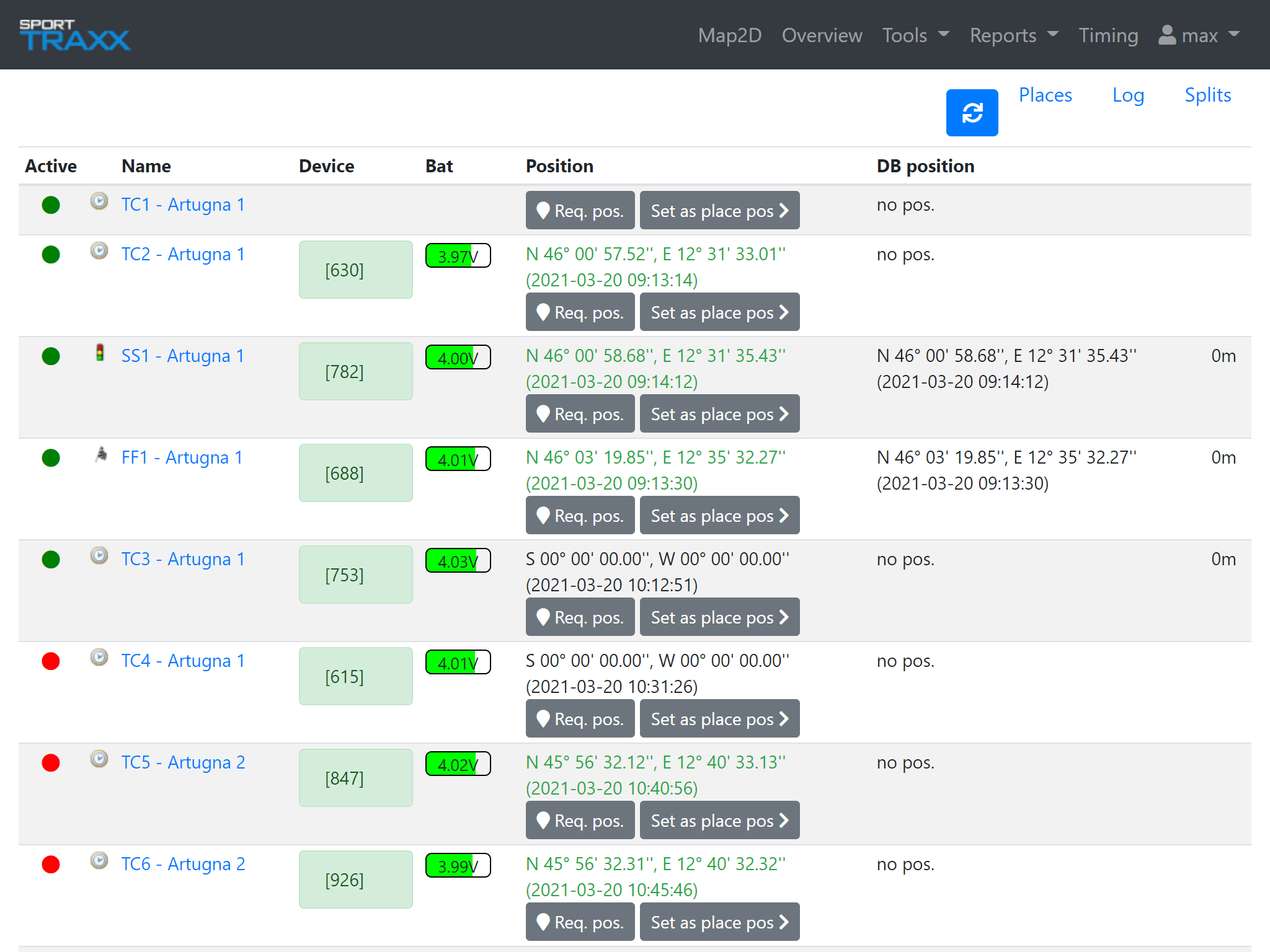
A table of seven fields to manage timing points:
- Active: the dot is actually a button, used to set the modem online (green) or offline (red) in order to forward data from that place to the results software
- Icon: shows the type of timing point (Start, Finish or TC)
- Name: timing place's name. Is also used as a link to manage that timing place
- Device: is the serial number of that clock. Green = connected to GPRS and red = disconnected (or off)
- Bat: shows the battery level and the connection to an external power supply (if any)
- Position: shows the position of the clock on the field. Green = valid, red = not valid. Use the Req. pos. button to refresh. Use the Set as place pos button to update the position in the timing database (needed for the automatic identification of the vehicle passing on that timing place)
- DB Position shows the position (if any) after confirmation through the Set as place pos button and its distance in meters from the following transmitted positions
Places
Selecting a place's name from the Name column, a page to manage that specific place will be opened.
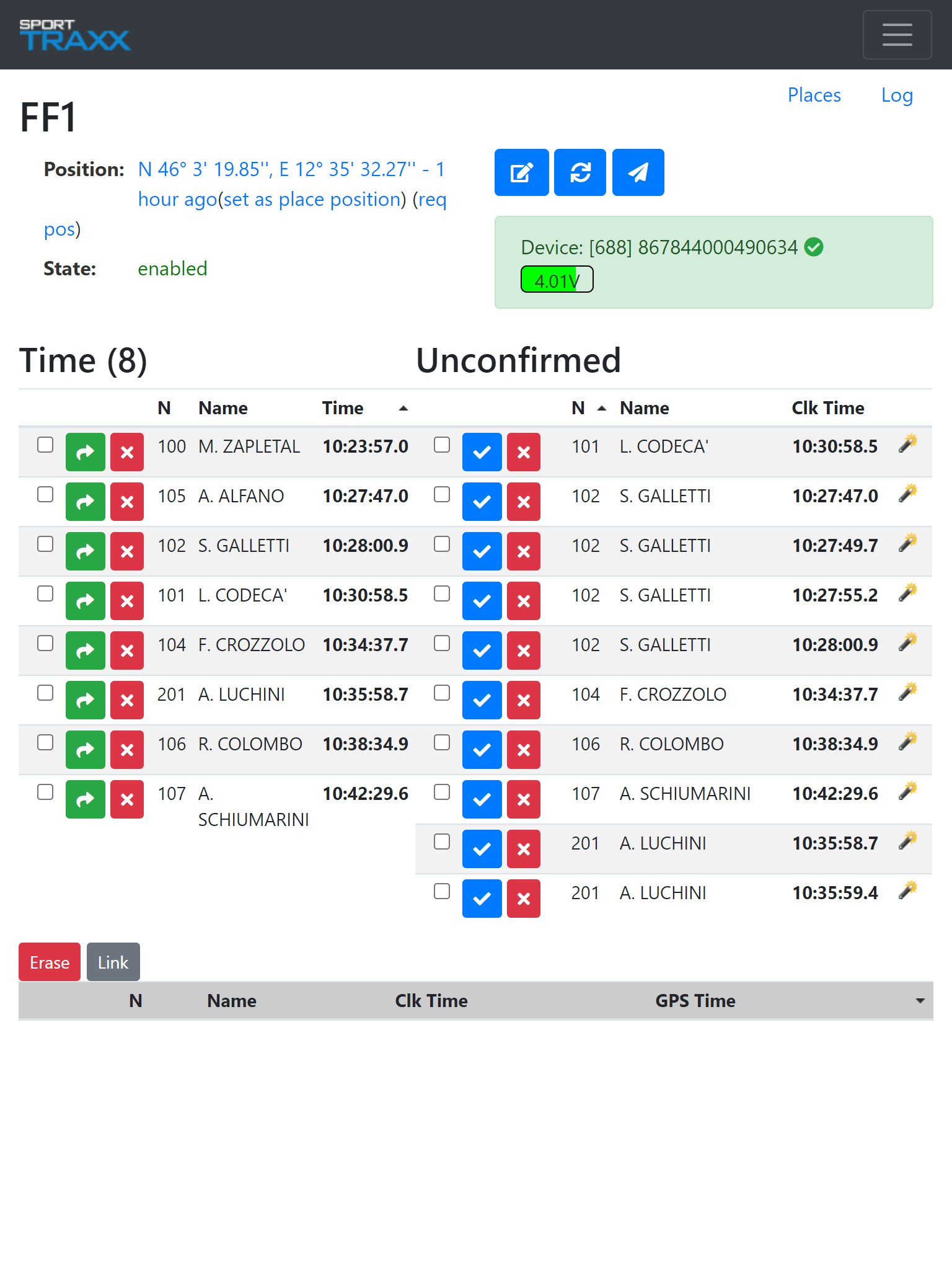
All types of places show name, position, state and associated device. In the device assignment box, a small icon shows if the beam connected to that clock (if any) is currently online/offline.
Basic buttons common to every place are:
- Manual time input
- Refresh
- Send message to clock
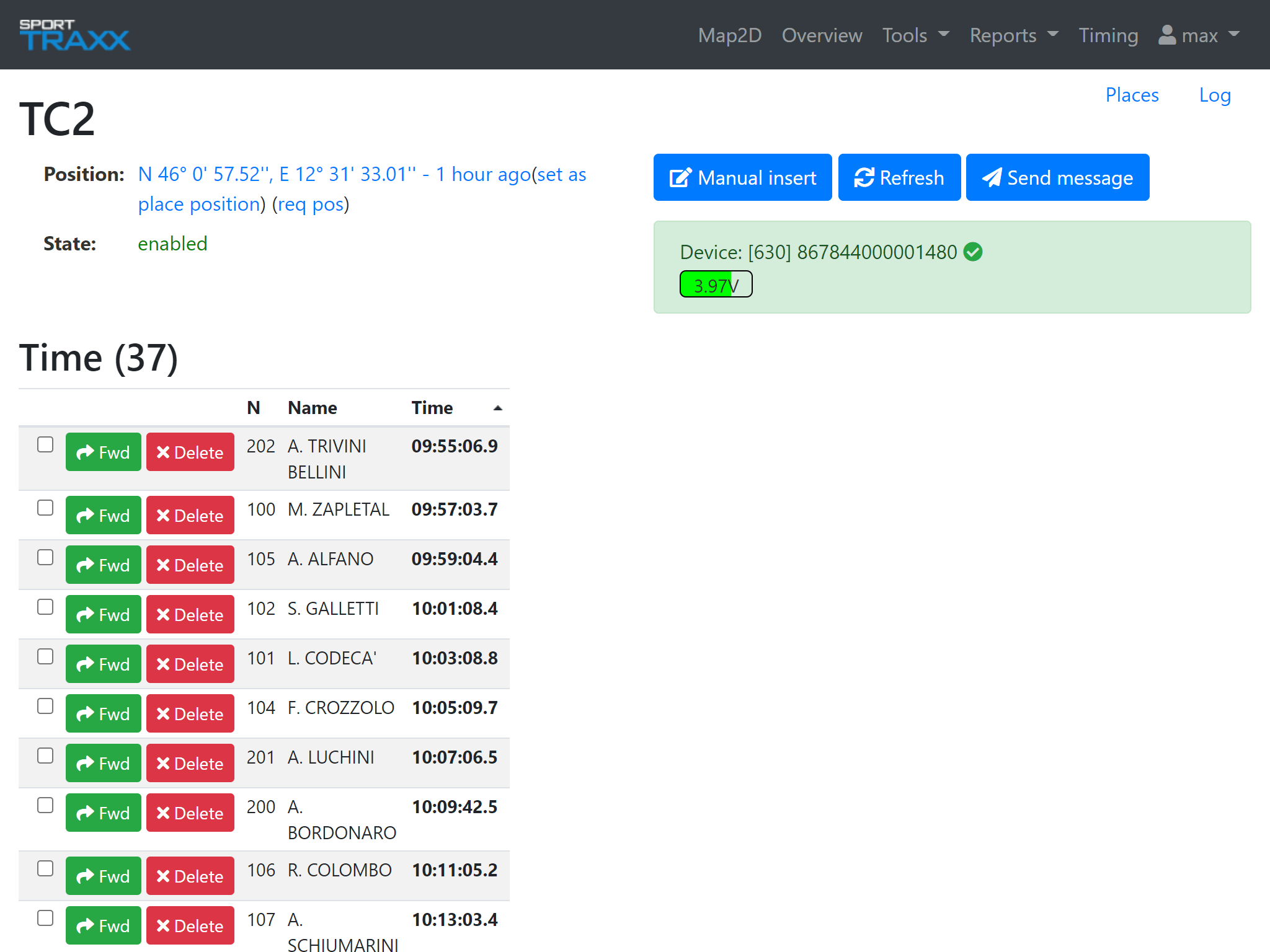
TC (Time Control)
A time caught by the TC clock and assigned by the timekeeper to a specific competitor will show up in the list. If the time is logical it will be forwarded to the Results module (a green checkmark appears next to the time) by pressing the green arrow or will be canceled with the red button.
A counter Time (X) keeps record of times that came from that place.
Start
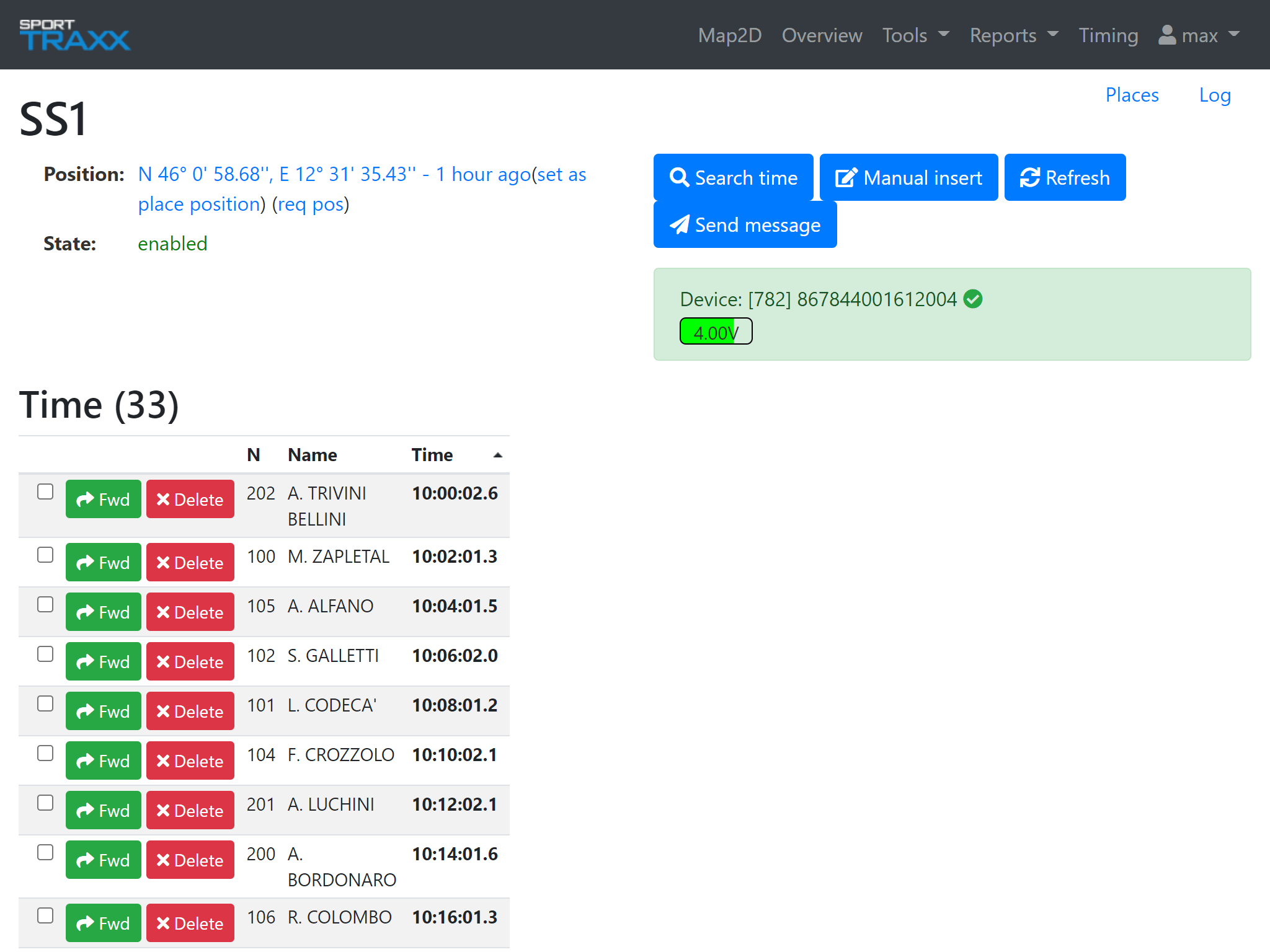
A time caught by the Start clock and assigned by the timekeeper to a specific competitor will show up in the list. If the time is logical it will be forwarded to the Results module (a green checkmark appears next to the time) by pressing the green arrow or will be canceled with the red button.
A counter Time (X) keeps record of times that came from that place.
An additional button allows to search for a starting time caught on a virtual waypoint few meters after the clock.
Finish
In the Unconfirmed section, times are showing up, coming from the timekeeper (with the icon of a clock), from the GPS based identification process (with the icon of a magician stick) or from a manually associated anonymous time. A time can be confirmed with the blue check button if either the marshall's info is reliable or
Log
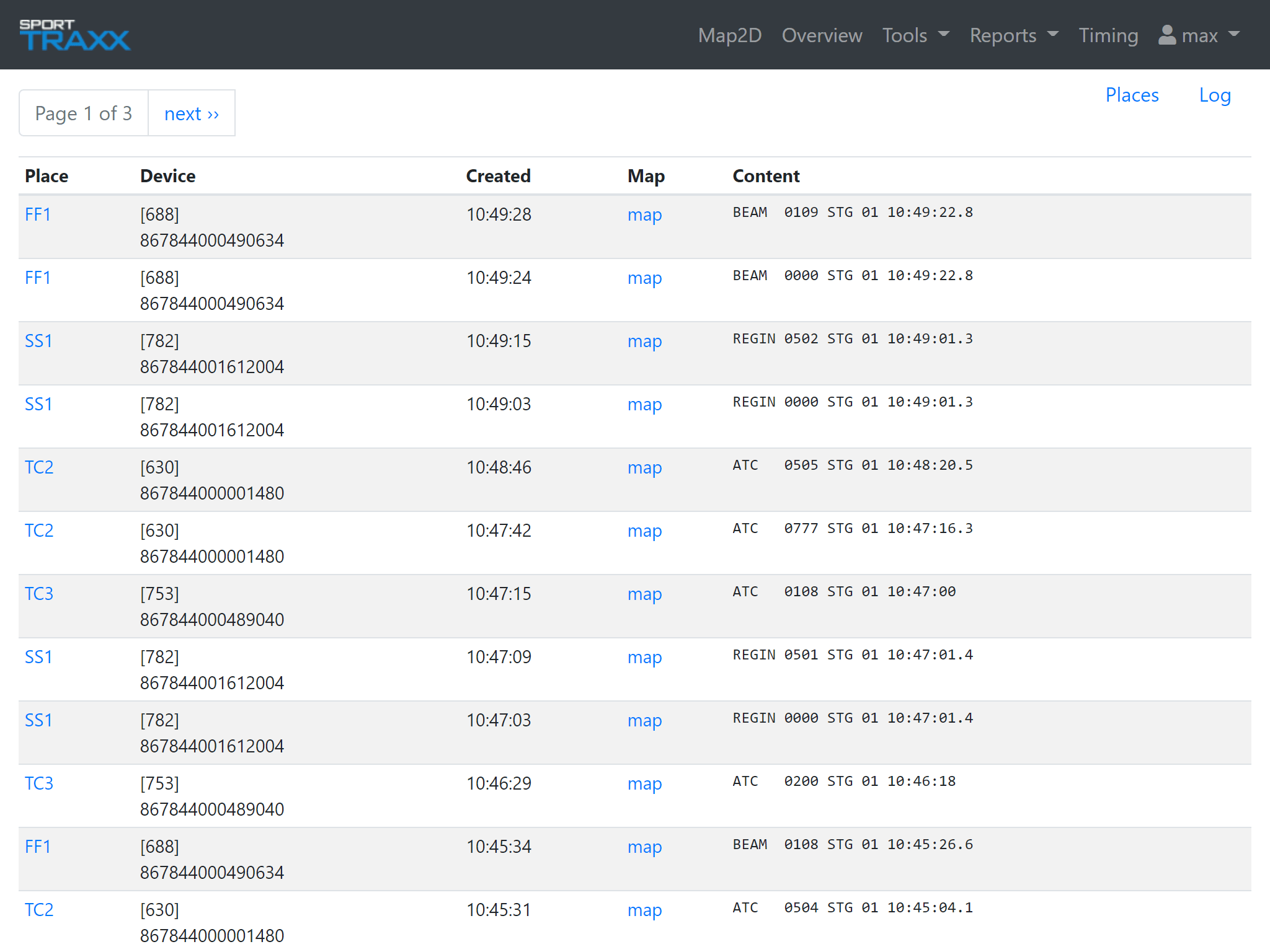
The log button in the Timing page opens a collection of all timing data that came in from all places, while the same button used in a specific place's page opens only the data coming from that specific place (clock).